Cooking mode in a recipe app: one step when hands are busy
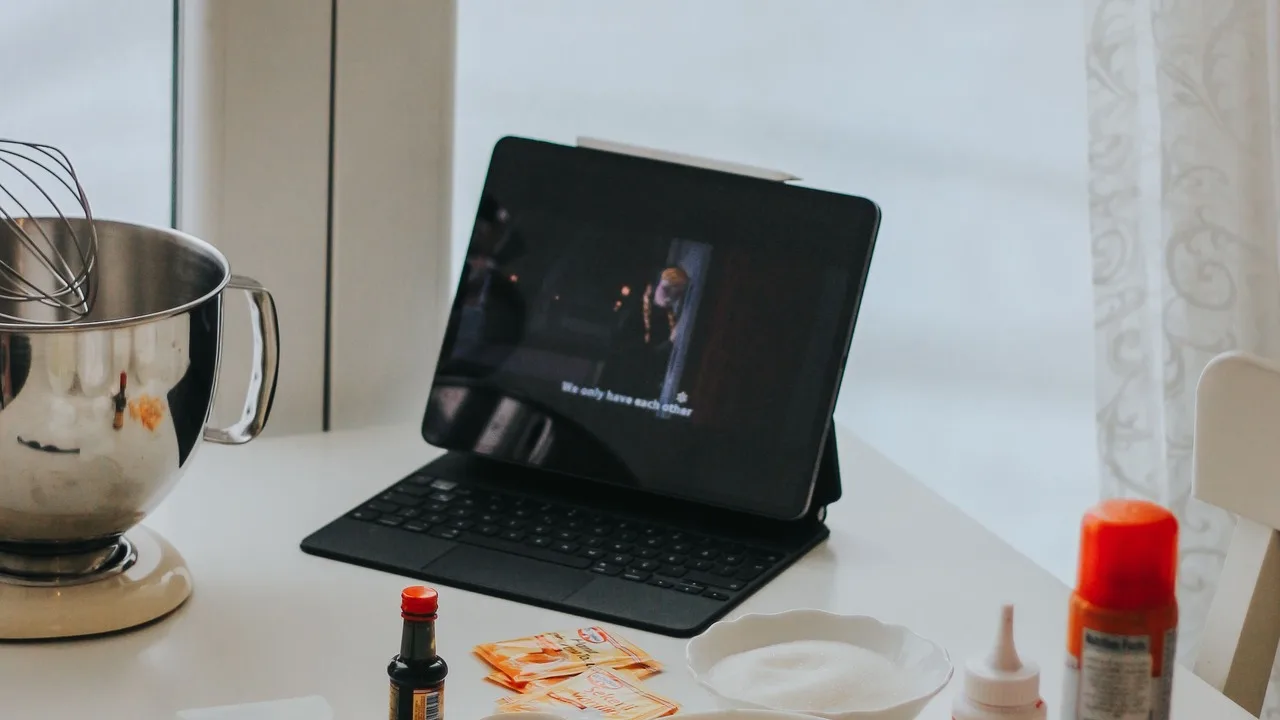
Photo: Sara mazin
You are in the middle of a step, your hands are covered in flour or oil, and the screen goes dark. Or you accidentally scrolled three steps ahead and had to scroll back with a wet finger. That is exactly the problem cooking mode in a recipe app is meant to solve: less scrolling, a way to keep the screen on, more focus on the step you are doing right now.
This guide explains what cooking mode in KitchenAppes includes, based on what the site says, and how to use it in real time in the kitchen.
The problem: a long recipe versus busy hands
A good recipe has an ingredient list and steps in order. While you cook, though, you need something else:
- To see only the current step, not the whole page.
- For the screen not to switch off while you wait for the oven or the pan.
- To start a timer without hunting for another app.
- To tick off what has already gone into the bowl, without losing your place in the list.
When all of that is spread across notes, screenshots and a separate timer, mistakes are easy. Cooking mode brings it together on one screen.
What cooking mode in KitchenAppes includes
The description below is based only on the cookbook and about us pages, checked on 24.10.2026 (Israel time). We have not added features that do not appear there.
According to those pages, cooking mode (Start Cooking / Cook mode) includes:
- A way to keep the screen on while you cook, so it does not switch off halfway.
- One step at a time on the screen, instead of scrolling through the whole recipe.
- Next / Previous to move between steps.
- A timer you start from the step that needs it.
- Checkboxes for ingredients, so you can mark what you have already used.
- A button that reads the step aloud, for when your hands are busy and reading is awkward.
How to use it: four short steps
- Open a recipe from the community recipes. According to the page, you can open, save and cook from a recipe without an account.
- Start cooking mode. You can keep the screen on, and one step is shown. Move with Next and Previous at your own pace.
- Start a timer from the step when the recipe asks you to wait, bake or cook for a set time. The timer belongs to the step, not to a separate clock app.
- Tick off ingredients in the checkboxes as you work. That way you see what has gone in and what is still waiting on the counter.
If you would rather hear the step than read it, use the read-aloud button. It is especially handy when there is flour on your fingers or the device is far from the sink.
A tip before you start: the shopping list
According to the site, you can add a recipe's ingredients to the shopping list, one by one or all at once. It is worth doing this before you enter cooking mode, so you do not find out mid-step that you are out of oil or onions.
The about us page also mentions a unit converter next to each ingredient, in case the recipe uses units you are less familiar with. Translating a recipe into the interface language (for example from Hebrew to Russian) takes one tap, according to the same page. The units also adapt to the language, according to the cookbook page.
Who it suits day to day
Cooking mode does not replace practice in the kitchen, but it cuts down the friction around the screen:
- A quick weeknight dinner with three pots going at once.
- A cake with waiting stages, when you need a clear timer.
- Cooking together: one person cooks, the other follows the step on the screen or listens to it read aloud.
KitchenAppes is available in the browser at smartestappes.com, on iPhone through the App Store and on Android through Google Play. The interface is in Hebrew, English and Russian. You can use the app and the website without paying (they show ads).
Quick questions
Do I need an account to use cooking mode? The cookbook page says you can open a recipe, save it and cook without an account. Saving to a personal book and organising it into categories are listed on the about us page as things you do after signing in.
What if the screen switches off anyway? In cooking mode you can keep the screen on. If your device has aggressive battery limits, check the device's own system settings; that is outside the app's description.
Can I make a shopping list from the same recipe? Yes. According to the site, you can add the recipe's ingredients to the shopping list, one by one or all of them.
In short
Cooking mode in a recipe app is made for the moment your hands are in the kitchen and your eyes need one clear step: a way to keep the screen on, Next/Previous navigation, a timer from the step, ingredient checkboxes and read-aloud. In KitchenAppes, these are the features described on the cookbook and about us pages.
Ready to try it on a real recipe? Open the community cookbook, pick a dish, and start cooking mode. More on what you can do in the app is on the about us page. Download: App Store · Google Play.
If you are still choosing an app, this is worth reading too: How to choose a recipe app: 6 questions before you download.
KitchenAppes
Download the app